Help
How Dungeon Tracker works, from adding your character to rolling with your table. Pick a section below.
Nothing matches. Try another word, or ask us.
Getting started
Bring your D&D Beyond character to the table in about a minute.
What Dungeon Tracker is
Dungeon Tracker turns your D&D Beyond character into a play sheet for your phone, tablet or laptop. Every roll is one tap away with your bonuses added up, and HP, spell slots and class uses are tracked as you play. Tap any rule, spell or feature to see what it does.
It only reads your public D&D Beyond character and never changes anything there. You still build and level up on D&D Beyond, then sync with one tap. Both the 2024 rules (5.5e) and the 2014 rules (5e) work, even on a multiclass character that mixes them.
Make your character public
- Open your character on D&D Beyond.
- Go to Manage → Character Settings → Character Privacy (scroll all the way down).
- Pick Public.
- Copy the address from your browser. It looks like dndbeyond.com/characters/12345678.
Sign in
Tap Roll in on the front page. New here? Signing in makes your account. You can use:
- An emailed code. Type your email and tap 📧 Email me a code. Type the 6-digit code (it works for 10 minutes) and tap Roll in →.
- Google, Apple or Discord. Tap Continue with ….
- A password. Tap 🔑 Use a password instead, then I have a password, or Join the party to make a new account with one.
Add a character
The first time, you get two steps: paste your character link and tap Add my character →, then pick a username. Your username goes in your sheet links (dungeontracker.com/yourname/12345678), so your party can find you. You can change it later.
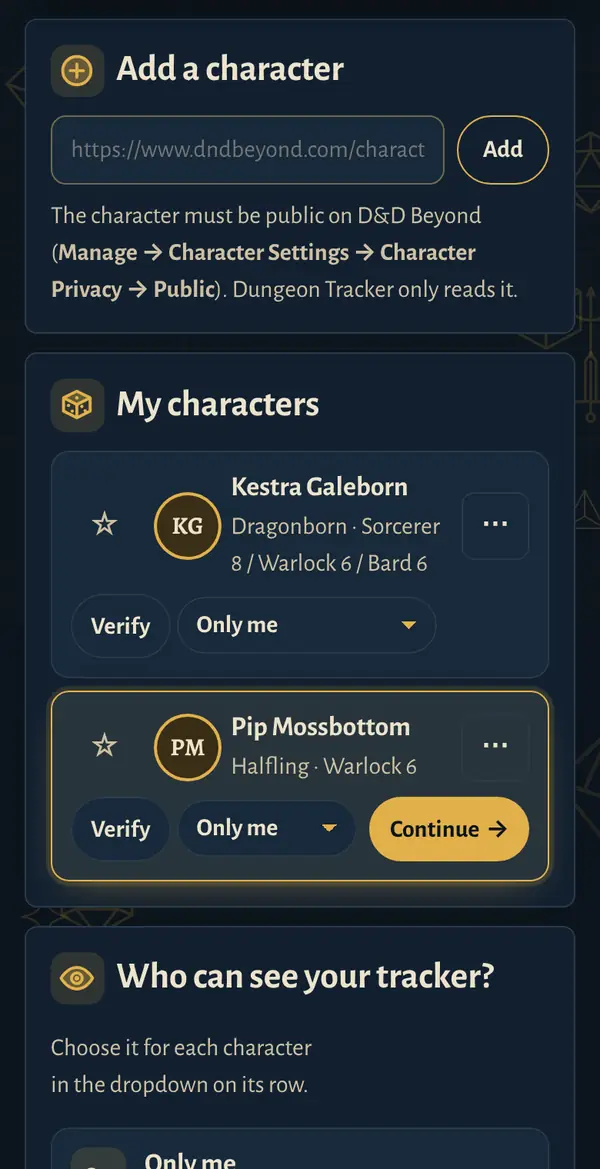
Later, add more with ➕ Add a character on the 🎲 Characters tab of your home page (up to 50).
Try a sample character
No account needed. Tap 🎲 Try a sample character on the front page and pick one. Roll, cast, take damage and rest: what you change stays on that device. Tap Use my own character → when you're ready.
Your home page
Your home page has four tabs: 🎲 Characters, 🍻 Party, ⚙️ Account and 🗄️ Your data. Each of your characters has a row with:
- ☆ Playing now: tap to pin the character to the top of your list.
- Verify, until it's verified (see Sharing).
- A dropdown for who can see your tracker.
- ⋯ with ↑ Move up, ↓ Move down, 🗄️ Archive and Remove….
- 🎲 Continue → on the sheet you opened last on this device.
Archived characters wait under 🗄️ Archived at the bottom (↩︎ Unarchive brings one back). Remove… deletes the character's tracker, your notes and its party log posts. It stays on D&D Beyond, so you can add it again any time.
The sheet
What's on your sheet and how to get around it.
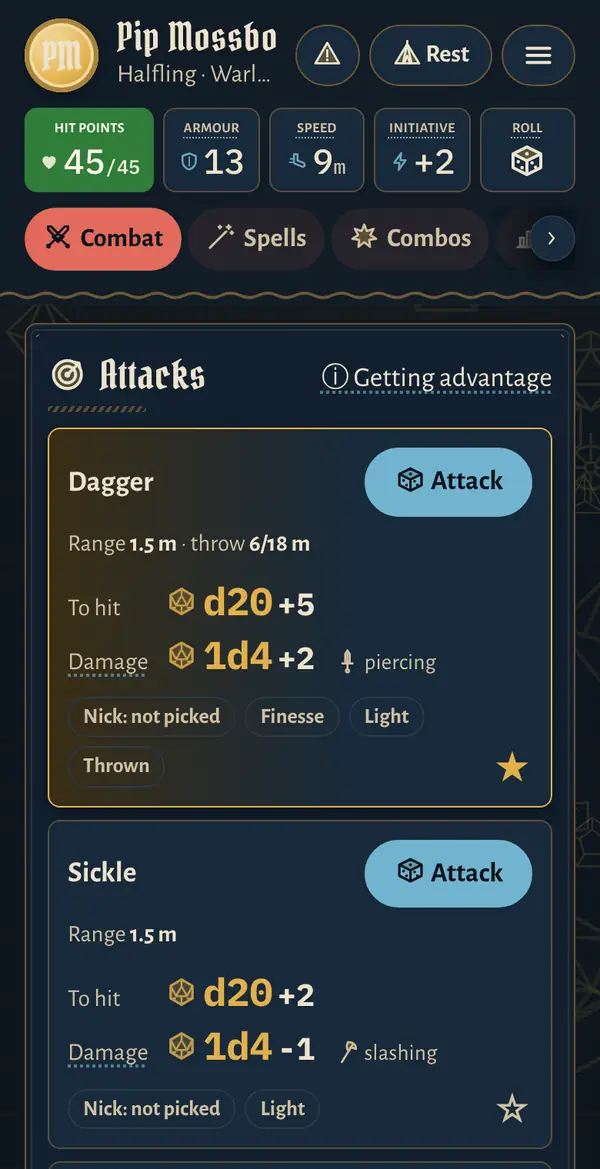
The header
At the top: your portrait and name (tap to reload the sheet), ⚠️ Conditions, ⛺ Rest and ☰ (the menu).
Below them are five tiles:
- Hit points: changes colour as you lose HP. Tap to change your HP.
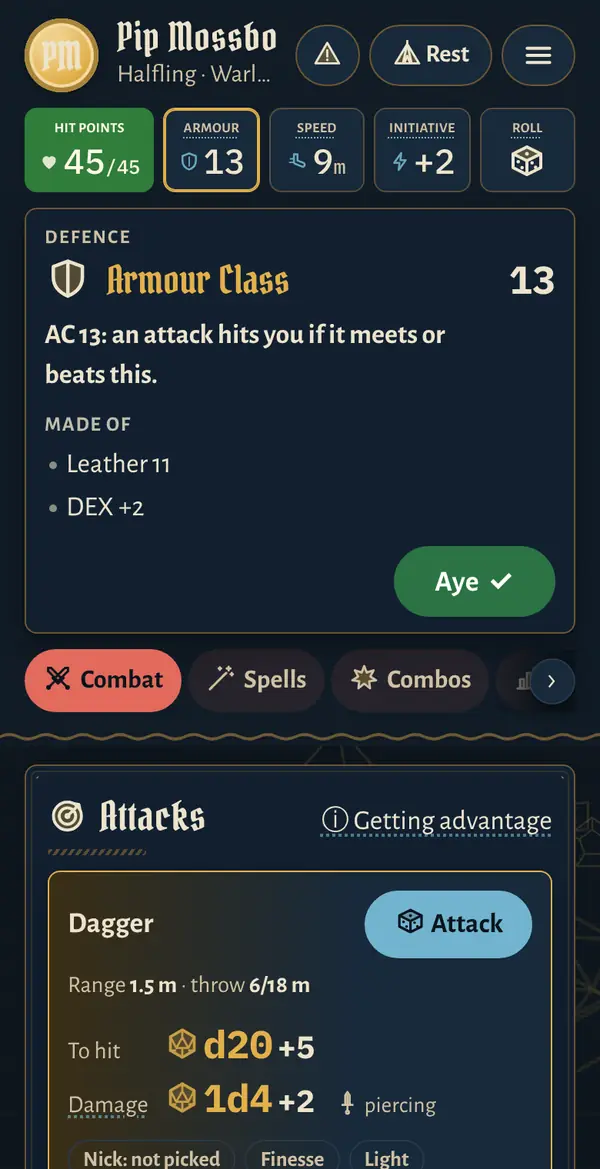
- Armour, Speed and Initiative: tap to see how the number is made up.
- Roll 🎲: opens Quick roll.
Tabs
Swipe left or right, tap a tab, or use the ‹ › buttons at the bottom of each tab.
- ⚔️ Combat: attacks, companions, "Your turn at a glance" and Action resources.
- 🪄 Spells: spellcasting numbers, concentration, slots and spells.
- 💥 Combos: turn ideas from your abilities, when you have some.
- 📊 Stats: abilities, saves, senses, proficiencies and skills.
- 🎒 Gear: coins, items, ammunition and carrying.
- ✨ Traits: species, class, background and feats, with search and filters.
- 📈 Grow: what your next 3 to 5 levels bring, pathways for each class and the mix, multiclass dips, and your own ★ plan.
- 📜 Notes: the change list, your notes, the party log and table rolls.
Tap anything for an explanation
Rules words, spells, features, skills, conditions and proficiencies are tappable. Tap one for a short explanation. Many also show their uses, or a button to act on them.
Sections, order and favourites
When a tab has two or more sections, a ↕ Sections button floats at the bottom. Use it to jump to a section, or tap ↕ Reorder to move sections (and, on Combat, attacks) up and down.
Tap ☆ to make an attack, spell, combo or Quick roll a favourite. Favourite spells and combos get their own list at the top; hold and drag to reorder them. Order and favourites are saved on this device.
On a computer
On a wide screen, abilities, saves and skills sit in columns beside the tabs, and drawers open as windows. The left and right arrow keys switch tabs.
↑ Back to contentsRolling dice
Roll the 3D dice, or roll your own and read the totals.
Attacks
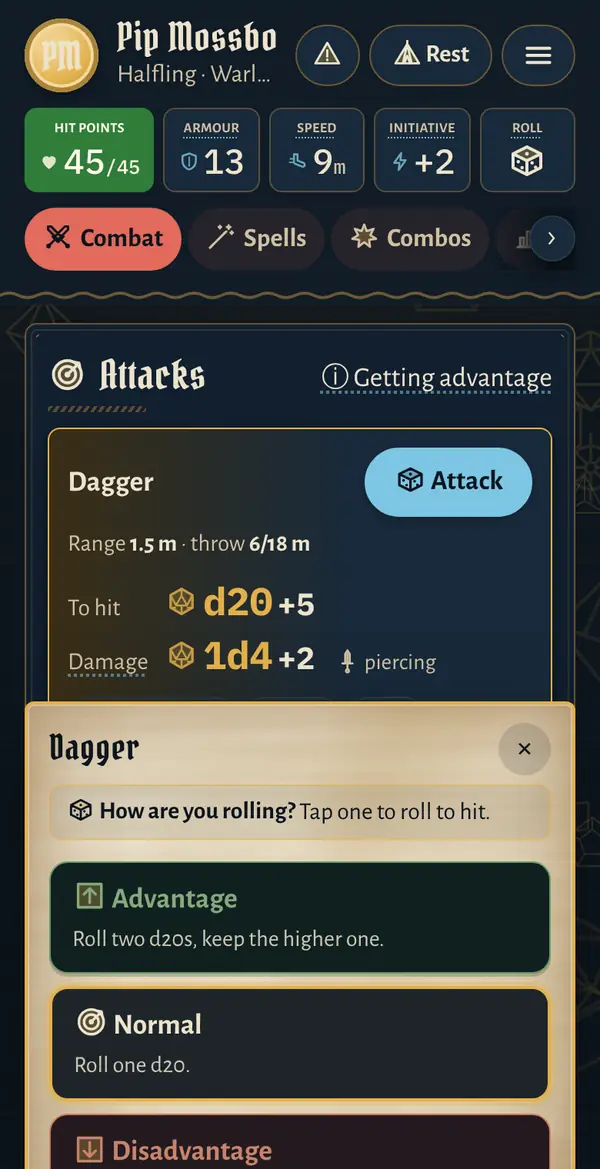
- On the Combat tab, tap 🎲 Attack.
- How are you rolling? Tap Advantage, Normal or Disadvantage. A line underneath lists when you might have either. If your conditions point one way, that choice is marked "suggested".
- Step 1 · Did it hit? Meet or beat the target's AC. A natural 20 always hits and crits; a natural 1 always misses.
- Tap 💥 Roll damage (or One-handed / Two-handed), or ✕ Missed.
- Step 2 · Damage. On a crit the dice are doubled for you.
Extras like Sneak Attack, Rage or Divine Smite appear under Add to the roll or Extra damage. Some are added by themselves; others you tap, and their cost (a slot, a use) is taken. ✕ Remove gives it back. Magic ammunition is picked under 🏹 Ammunition before you roll.
Checks, saves and skills
Tap the d20 pill next to a save or skill, or an ability tile for its check, then pick how you roll.
Inspiration and blessings
Hit and check cards have a folded Inspiration & Blessings box:
- 🎲 Reroll your lowest d20 with Heroic Inspiration. Just got some from the DM? Tap ➕ Add first.
- 🎲 Roll d4 for Bless or Guidance.
- Pick the bard's die (d6 to d12) for Bardic Inspiration.
Initiative
Tap the Initiative tile, then 🎲 Roll. At a table with a DM, your roll joins the DM's turn order.
Quick roll and Free roll
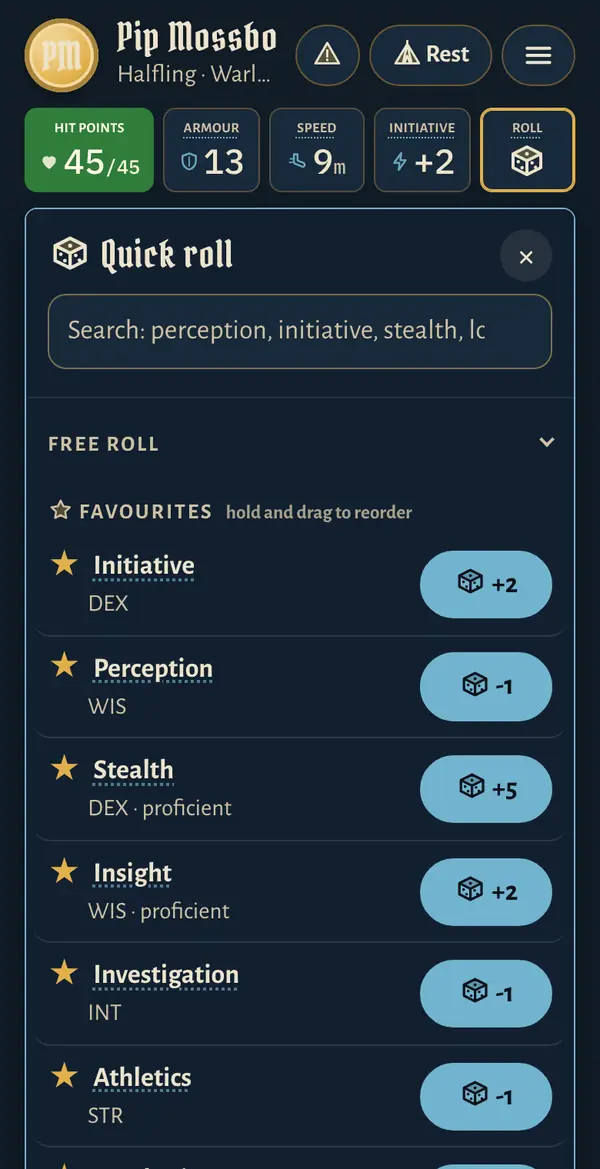
Roll 🎲 in the header opens 🎲 Quick roll: every skill, save, ability check and tool. Search to find one fast, and tap ☆ to pin it under ⭐ Favourites.
Free roll, at the top, is for anything not on your sheet: falling damage, a random table, a d100. Tap dice to add them (d4 to d100), set a modifier with − and +, and tap 🎲 Roll.
Throw it yourself, or automatic
In ☰ → Customise → Dice rolling:
- 🤚 Throw it yourself (the default): the dice wait at the bottom of the screen. Flick them, tap for a gentle toss, or press Roll for me.
- 🎲 Automatic: the dice roll by themselves.
Dice sets
Every theme has its own dice sets. Open ☰ → Dice sets, tap a set to see it roll, and tick the circle to use it.
🎨 Make your own lets you design a set: colours, finish (matte, glossy, metal, pearl, glass, wood or stone) and numerals. Tap Save and use. Your own sets are kept on this device for all your characters, up to 10.
Combos
The 💥 Combos tab suggests turns that work well together, like Rage and swing, Hunter's Mark and shoot, or hit then Smite. Tap 🎲 Roll to roll a combo's attacks one after another.
↑ Back to contentsTracking as you play
What you change is saved to your account and shows on your other devices too.
Hit points
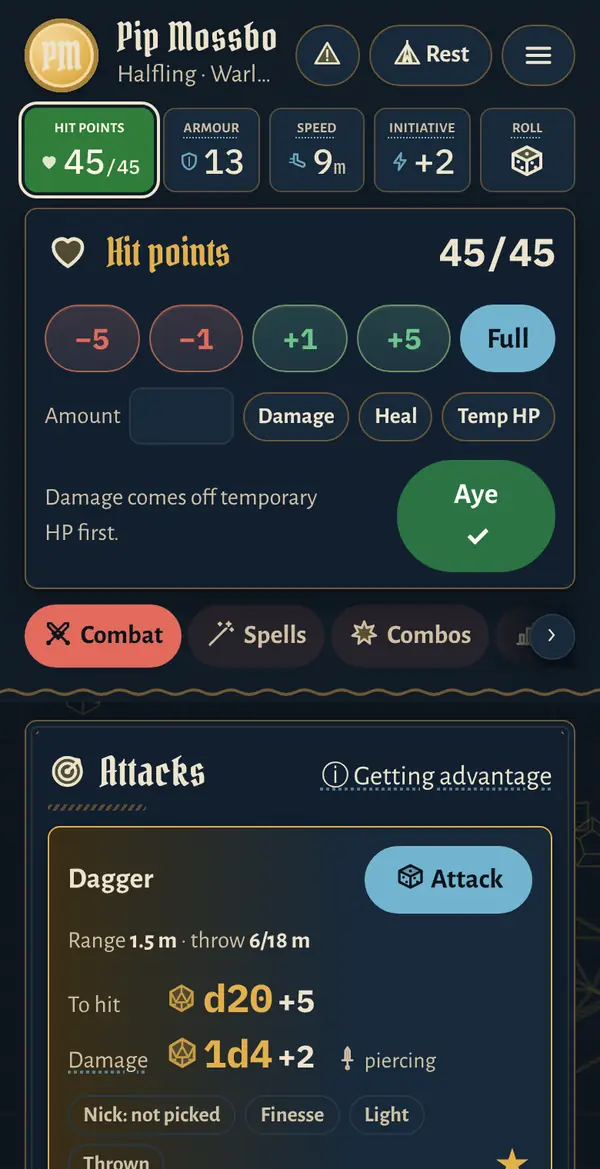
Tap the Hit points tile. Use −5, −1, +1, +5 and Full, or type an Amount and tap Damage, Heal or Temp HP. Damage comes off temporary HP first.
Death saves
At 0 HP the tile says Down, and the HP drawer shows Death saves. Tap 🎲 Roll a death save, or tap the circles if you rolled real dice.
- 10 or higher is a success; three successes and you're stable.
- A natural 20 brings you back with 1 HP. A natural 1 counts as two failures.
- Damage at 0 HP counts as a failure; three failures and your character dies.
Conditions and exhaustion
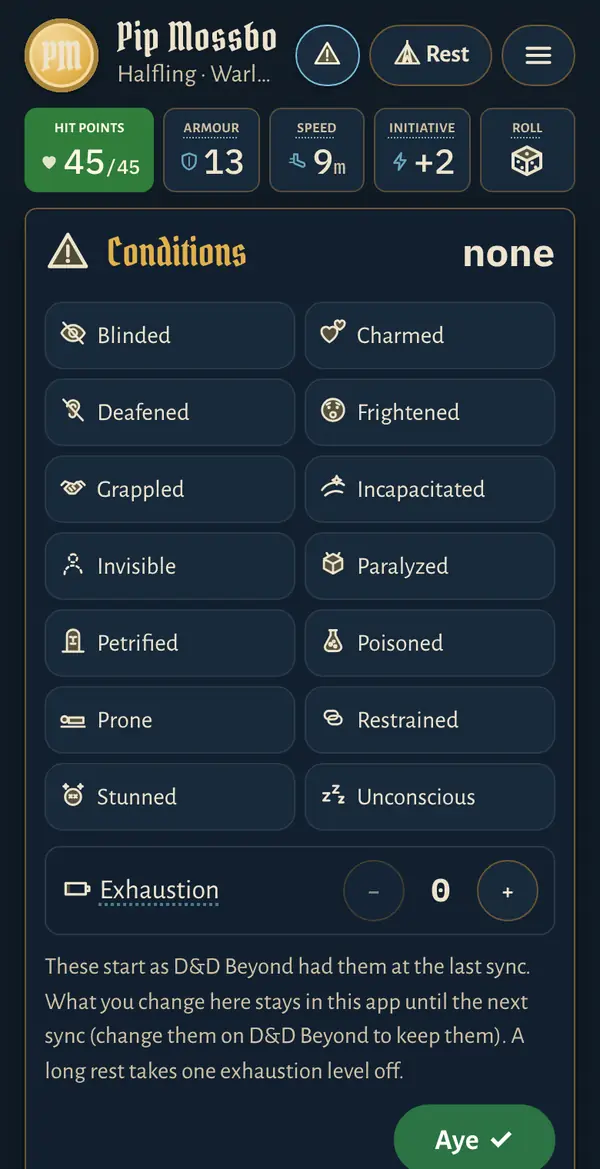
Tap ⚠️ Conditions. Tap a condition to read it, then Activate (or Recover to take it off). Set Exhaustion with − and +.
- Fixed effects apply by themselves. Paralyzed, Petrified, Stunned and Unconscious fail your Strength and Dexterity saves; Grappled or Restrained set your speed to 0.
- Effects that depend on the moment, like Prone or Invisible, only suggest advantage or disadvantage. You still pick.
- Exhaustion follows your rules: in 2024, −2 on every d20 test and −1.5 m speed per level; in 2014, the 2014 table.
- A long rest takes one exhaustion level off.
Class resources
Limited-use features are in Action resources on the Combat tab.
- Pips: ✓ is ready, ✕ is spent. Tap one to change it.
- Pools like Lay on Hands: −5, −1, +1.
- On/off features like Rage: switch on, and a card shows at the top of Combat until you switch it off.
Some features show as text only for now; count their uses on D&D Beyond.
Spells and concentration
The 🪄 Spells tab shows your attack bonus and save DC, your Spell slots as pips, and your spells by level, with search and filters.
Tap 🪄 Cast, then 🪄 Which slot? (higher slots make many spells stronger). Where it applies, you can also cast 📖 As a ritual, with a ✨ Free cast or a 🔮 Pact slot. Attack spells use the same hit and damage steps as weapons.
Casting a 🧠 spell sets your concentration. The box at the top of the tab has 🎲 CON save for when you take damage, End, and 🔁 Change for a spell you cast earlier.
Rests
Tap ⛺ Rest.
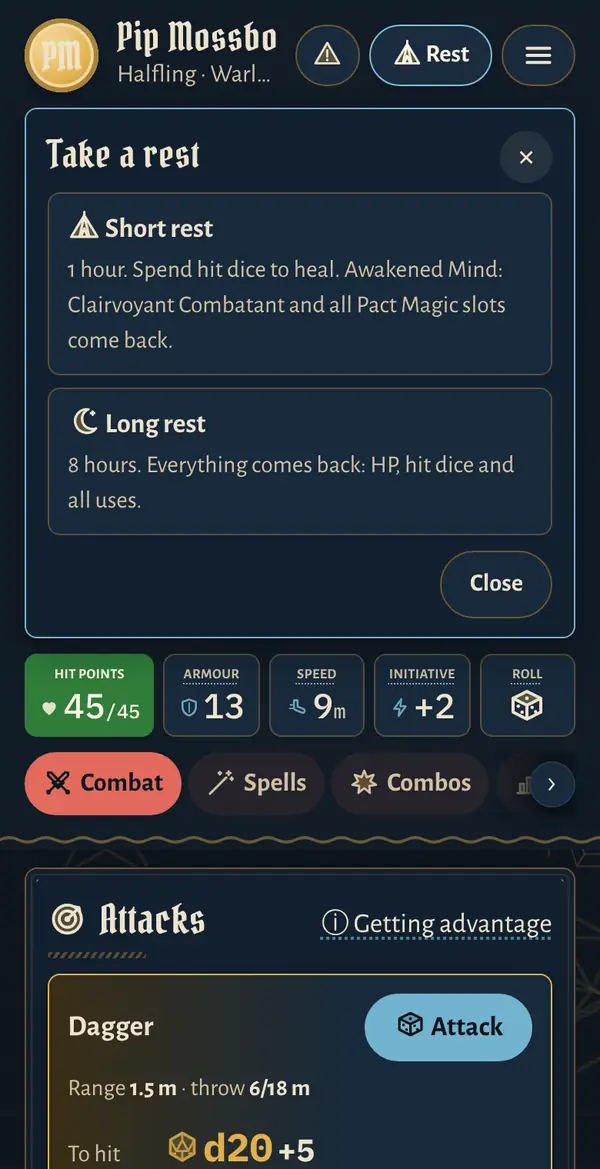
⛺ Short rest: tap ⚡ Restore for what comes back for free. Spend hit dice with 🎲 Roll (die + Constitution), or tap the pips if you rolled real dice and add the HP yourself. Then tap ⛺ Short rest done.
🌙 Long rest: check what comes back and tap 🌙 Take long rest. You get full HP, all uses and spell slots. Temporary HP and concentration end, and one exhaustion level comes off. Hit dice: all of them on the 2024 rules, half on the 2014 rules.
Ammunition and coins
Rolling to hit with a bow or crossbow spends ammunition. The Quiver card on the Gear tab has − / + and Recover arrows: after a fight you get half of what you fired back.
In Purse & plunder, tap a coin, type an amount, and tap 💸 Spend or 🪙 Gain. Not enough of that coin? Tap Pay … using change and the change is counted out for you.
Items
Tap an item on the Gear tab to see what it does. Charges show as pips, and consumables have a use button like 🧪 Drink. The tab also shows how many of your 3 attunement slots you use, and what you carry against your carrying capacity.
Picked something up? Tap ➕ Add item, search or browse, set how many and Equipped, and tap ➕ Add. It works straight away, marked "not in D&D Beyond yet", and goes on the change list until D&D Beyond has it and you sync. The list holds the free rules items (SRD 5.2); add homebrew and book items on D&D Beyond.
Companions 🐾
Familiars, beast companions and sidekicks from your Extras on D&D Beyond get a 🐾 Companions card on the Combat tab, with their own HP and rolls.
↑ Back to contentsNotes and the change list
Session notes, a party log, and what to copy back to D&D Beyond.
What to type into D&D Beyond
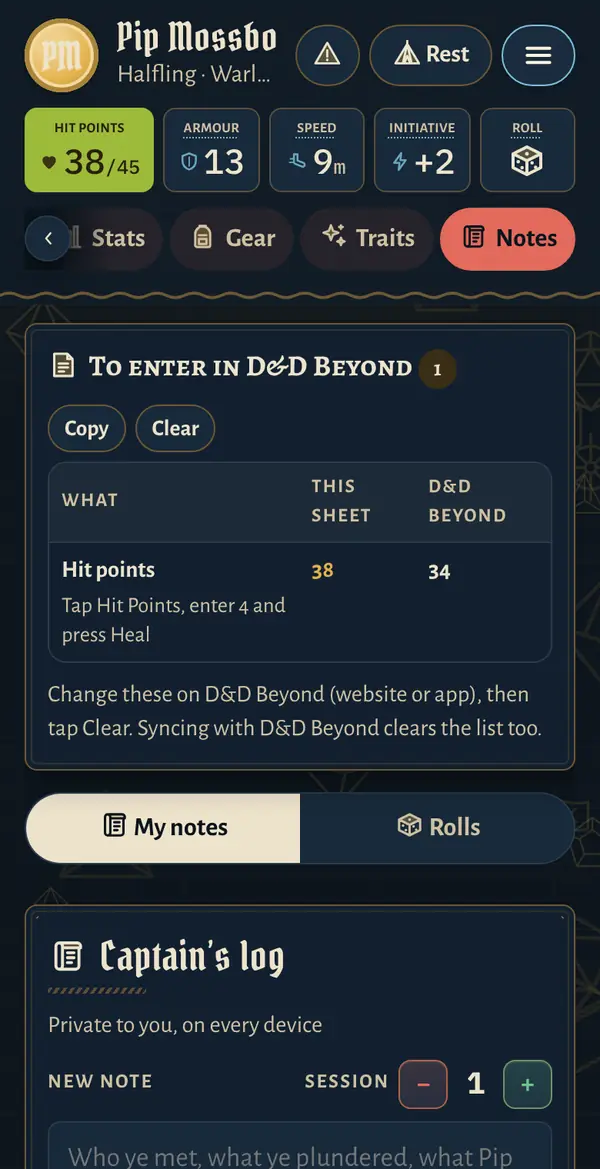
At the top of 📜 Notes, 📝 To enter in D&D Beyond lists every difference from D&D Beyond (HP, uses, coins, hit dice, added items…), each with where to change it there.
- Copy puts the list on your clipboard.
- Clear empties it. Only clear once the changes are in D&D Beyond; your tracker stays as it is.
Syncing clears the list too.
My notes
Under 📜 My notes, set the Session number, write, pick Story or To do, and tap ✍️ Add note. Filter by All, Story or To do; tick to-dos when they're done. Your notes are private to you, on every device. They can't contain angle brackets.
Party log
A verified character in a D&D Beyond campaign also gets 🍻 Party log, shared with the other verified players in that campaign. Each note shows who wrote it, and only its author can edit it.
↑ Back to contentsSyncing with D&D Beyond
Build and level up on D&D Beyond, then bring the new version over.
What Sync does
Open ☰ → Sync with D&D Beyond:
- Sync the values in this sheet with D&D Beyond shows what differs. Dungeon Tracker can't write to D&D Beyond, so change these there if you want to keep them.
- ⬇️ Sync now gets your latest version and lists what differs, each with a tick box: new items, levels, spells, coins… Tap Bring in all, or untick what should stay as it is here (to bring in just a new item, say).
If something you changed would be lost, you're asked first: Replace or Go back.
What resets after a sync
After Bring in all, your tracker starts over from D&D Beyond's numbers: HP, uses, slots, hit dice, coins, conditions and companion HP. Your notes, favourites and settings stay, and so do items you added until D&D Beyond has them. Brought in only some of it? Then the tracker keeps its values, except for what came in, and what you left out is still listed the next time you sync.
The update nudge
When your character changed on D&D Beyond since your last sync, a card asks Sync this sheet? Tap Sync or Not now. Afterwards, ✨ Updated from D&D Beyond lists what changed.
To level up: level up on D&D Beyond, then sync.
"Lots of players are syncing"
The server is busy. Dungeon Tracker counts down and tries again by itself.
↑ Back to contentsSharing and your party
Choose who sees your tracker, and look at your party's sheets.
Who can see your tracker
Every character starts as Only me. Change it in the dropdown on its row:
- Only me: just you.
- My party can see: verified players in the same D&D Beyond campaign can look, and you share a party log. Verify first.
- Anyone signed in: anyone signed in who has the sheet's link can look.
Others can look, but never change anything.
Verifying a character
Verifying proves the character is yours. It unlocks My party can see, the party log, and rolling with your campaign's table.
- Tap Verify on the character's row.
- On D&D Beyond, open the character → Notes (or Backstory), paste the code anywhere, and save.
- Come back and tap Check.
It can take a minute to show. You can delete the code afterwards.
Looking at someone's sheet
Sheets shared with you are on the 🍻 Party tab under Shared with you. They're read-only: you see the tracker live, but only the owner can change it.
To play it yourself, tap 🎭 Play a copy. You get a private copy on this device that works offline and never syncs. Its banner has Open original, Recopy… and Delete copy.
To bring friends in, use Invite your party on the Party tab.
↑ Back to contentsRolling with your table
Share your rolls with your party and your DM as they happen.
Campaign tables
A verified character in a D&D Beyond campaign sits at that campaign's table by itself, with everyone else verified there.
Code tables
For a group without a D&D Beyond campaign, open 📜 Notes → 🎲 Rolls and scroll to 🍻 Tables:
- Join: type the table's code and tap Join.
- Make a table for your group: name it and tap Make, then share the code.
- Leave gets your character up from a table.
The table's maker gets Manage: take a character off (the code changes), New code or Delete table. A table holds up to 12 characters.
Who sees a roll
At a table, Roll to sits at the top of Quick roll: 🎲 Table, 🤫 DM only (the others see "rolled to the DM") or 🙈 Just me. It's for the next roll only.
To stop sharing altogether, switch off Share my rolls in the ☰ menu. 📜 Notes → 🎲 Rolls shows the table's rolls from the last 24 hours.
The others' dice
Other players' 3D dice roll across your screen in their own sets. Switch it off with Show the others' dice in the ☰ menu.
↑ Back to contentsThe DM screen
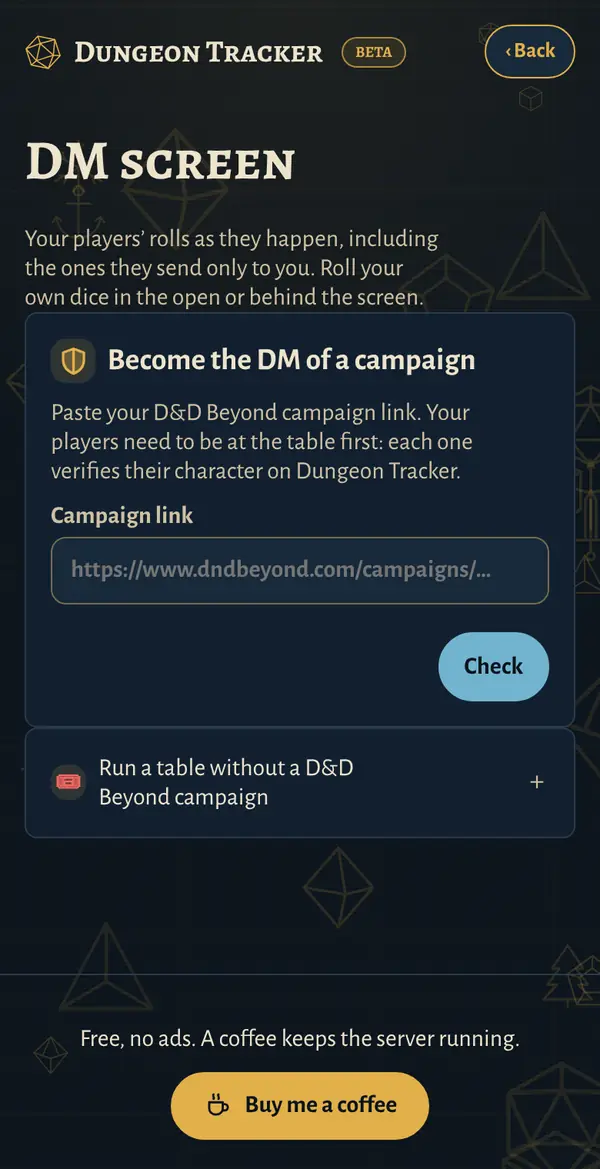
Your players' rolls live, and your own dice behind the screen. Open it from the 🍻 Party tab: Open the DM screen.
Become a campaign's DM
At least one player must have verified their character first.
- Paste your D&D Beyond campaign link and tap Check.
- If you have a verified character from the D&D Beyond account that runs the campaign, you're in.
- Otherwise you get a code. Add it anywhere in your campaign's description on D&D Beyond, save, and tap Check again.
No campaign? Run a table without a D&D Beyond campaign makes a code table that your players join from their sheet.
Your dice and the feed
Tap dice (d4 to d100), set a modifier and a label, and tap 🎲 Roll. With 🤫 Behind the screen on, players only see "the DM rolled". Rolls shows the last 24 hours, including rolls sent only to you.
⚔️ Turn order
Players who roll Initiative line up highest first. For monsters, roll with a label starting "Initiative", like "Initiative goblins". New fight starts over; Next turn moves on and counts rounds.
Customise
Each character keeps its own look on each device. Find these under Customise in the ☰ menu.
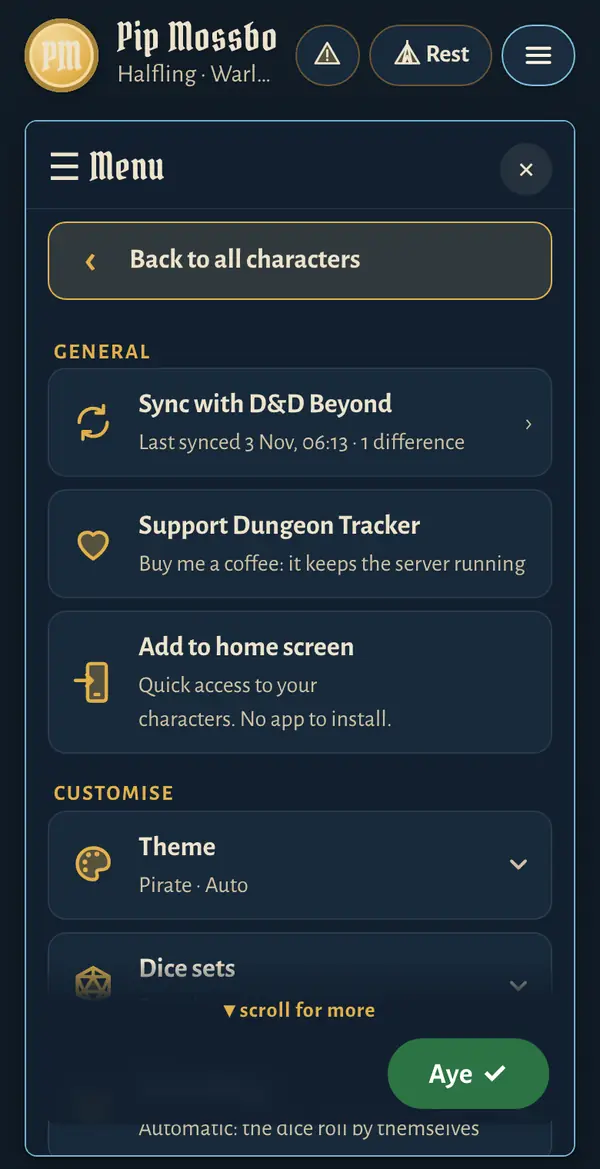
- 🎨 Theme: Dragon Keep, Feywild, Pirate, Starfarer, Ravenloft, Icebreaker, Underdark or Avernus. Each changes colours, fonts, dice and a few words. Below the themes: 🖥️ Auto, ☀️ Light or 🌙 Dark.
- 🔷 Dice sets and 🎲 Dice rolling: see Rolling dice.
- 📏 Units: see below.
- At a table: Share my rolls and Show the others' dice.
Metric or imperial
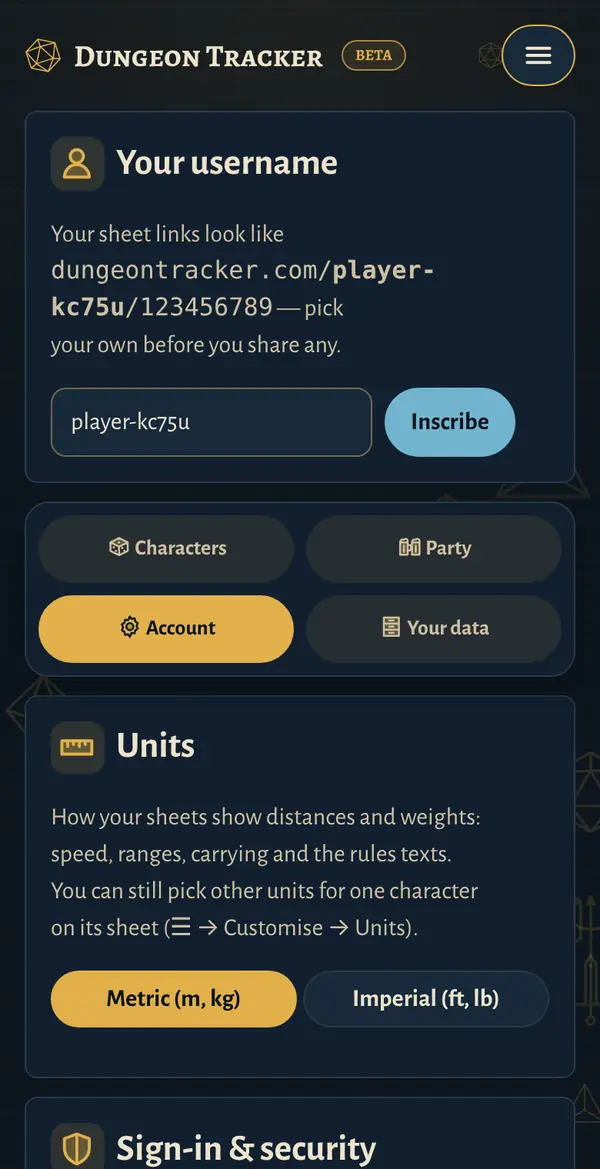
Dungeon Tracker uses metres and kilograms. For feet and pounds on every sheet, go to your home page → ⚙️ Account → Units → Imperial (ft, lb). For one character only, use ☰ → Customise → Units on its sheet; Use my account's choice undoes it.
↑ Back to contentsOffline and your home screen
Keep playing when the signal drops.
What works offline
Your own sheets that you've opened on this device while online open offline (the 10 most recent). Changes are kept on the device and saved when you're back. A bar says 📴 You've wandered off the map while you're offline.
Offline, rolls aren't shared, and Sync, verifying and the DM screen don't work. Sheets shared with you aren't kept: tap 🎭 Play a copy while online.
Add to home screen
Tap 📲 Add to home screen in the ☰ menu for steps. It opens full screen like an app, without installing one.
- iPhone (Safari): Share → Add to Home Screen → Add.
- Android: menu ⋮ → Add to Home screen (or Install app).
New versions
Dungeon Tracker updates itself. You get a new version the next time you open or reload a page while online.
↑ Back to contentsYour account
Find these on your home page.
Username
Change it under ⚙️ Account → Your username and tap Inscribe. Your sheet links change with it, so share the new ones.
Sign-in & security
Under ⚙️ Account → 🛡️ Sign-in & security:
- Change email: we send a code to the new address and one to your current one.
- Set a password, Change password or Remove it. Emailed codes always work too.
- Google, Apple or Discord: the logins linked to your account. Don't recognise one? Remove it.
- Sign out everywhere else: for a lost phone or a borrowed computer.
Leave the table
Your home page's ☰ menu → ↩️ Leave the table signs you out. Your characters stay in your account; this device's offline copies are cleared. If changes haven't been sent yet, you're asked first.
Your data
On 🗄️ Your data, ⬇️ Download my data saves everything as one file. Delete my account removes your account, characters, trackers and notes for good (type your username to confirm). Your D&D Beyond characters aren't touched. Your data is kept in the EU; see Privacy & Terms.
↑ Back to contentsTroubleshooting
Something not working? Start here.
My character won't add
- Make sure it's public: Manage → Character Settings → Character Privacy → Public.
- Check the link looks like dndbeyond.com/characters/12345678.
- "Already in your list"? Check 🗄️ Archived too.
The sign-in code doesn't arrive
- Check your spam folder.
- Wait a minute, then tap Send a new code.
- Asked for too many? Wait an hour, or use your password.
- Signed up with Apple's Hide My Email? Codes reach you through Apple's forwarding address. Setting a password gives you another way in.
My numbers differ from D&D Beyond
That's normal during play. 📜 Notes lists every difference. Changed something on D&D Beyond? Sync.
Homebrew
Homebrew items, spells, feats and actions come along with D&D Beyond's text, and you roll and track them like any other. Rules explanations and ➕ Add item only know the official rules.
Offline trouble
- "Hasn't been opened on this device before": open it once online.
- "This device is full": free up some space to keep working offline.
Report a bug or share an idea
Tap 🐞 Report a bug or share an idea in any ☰ menu. Add your email if you'd like a reply. Every message gets read.
Or email support@dungeontracker.com. Privacy details: Privacy & Terms.
Dungeon Tracker is an unofficial fan project, not affiliated with Wizards of the Coast or D&D Beyond.
↑ Back to contents